
The non-techy way to check if your website been indexed by Google

If you’re awaiting the arrival of visitors to your new website from Google search, you might easily be wondering whether Google has indexed your website at all.
Fortunately there is an easy, non-techy way for you to check whether your site has been indexed using the ‘site:’ command in your search bar. This post explains how to use this simple SEO ‘tool’ and what to do with the results you get. Bonus tip - I also explain how you can use the command to get an insight into your competitors’ websites too!
What is the ‘Site:’ command and how to use it for SEO?
The ‘site:’ command is a straightforward way to see which of your website pages have been indexed by Google. If your pages are not indexed by Google (or other search engines), then they will not show up in search results and you will miss out on all that precious organic traffic.
The ‘site:’ command works on all major browsers, including Google Chrome, Safari, and Firefox and here’s how to use it:
Open a search engine - Google (Chrome), Safari or Firefox.
Type
site:followed by your website’s URL. For example: site:yourwebsite.comTip: To avoid typos, open your website in a different tab then copy and paste your website’s URL directly from that tab into the search field.
Press enter, and you’ll see a list of pages Google has indexed. It’s that easy!
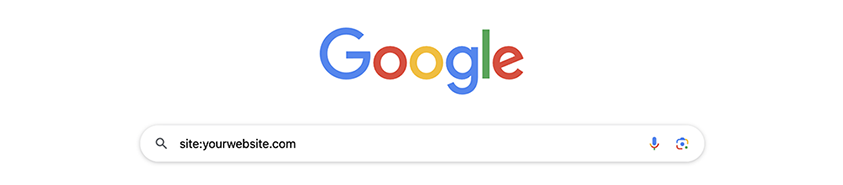
Enter the command ‘site:’ followed by your domain name into the search field
Now you have the index results – what next?
Once you see the results, you can take the following steps:
1. Check whether all the pages you want indexed have been indexed
Check that all the pages you want to appear in search results are listed.
If pages are missing (e.g., blog posts or product pages), it might indicate that Google hasn’t indexed them yet. This could happen for several reasons including the page being judged ‘poor quality’ (for example if there is little content on it), the site or page being accidentally marked as not for indexing (sites are often set as not for indexing during development), or an out of date site map.
Solution: Ask your web developer to verify and submit the missing pages through Google Search Console (GSC). GSC is a powerful tool that allows you to monitor indexing, site performance, troubleshoot issues, and even request indexing of specific pages. If your developer has not linked GSC to your site, be sure to ask for it to be done.

The results of a site: search - check the images tabs as well
2. Check that pages that should be hidden are hidden
Sometimes, pages like “thank you” pages, admin pages or test pages might appear in search results. Ideally these should not be indexed as they could confuse people searching the web - and search engines - and provide information that is out of place.
Solution: Work with your developer to add “noindex” tags to these pages. This tells Google not to include them in search results.
3. Analyse meta titles and descriptions
For each indexed page, review the title and meta description - the descriptive text below the title. These are critical for enticing users to click through to your site.
SEO title: This is the clickable headline. It can differ from the headline text on your website and should include relevant keywords. There is a limit to the number of characters that will display with the excess being truncated. This means that it is important to put the essential information up front in your SEO title.
Meta description: This is the snippet of text beneath the title. While Google sometimes generates this text dynamically, you can provide a customised version in your website’s back end and Google may use this. Like the title, the meta text has a character limit so you should take the time to make sure this text is persuasive and all the important information is in the first sentence.
Tip: Ensure these elements are optimised with compelling and keyword-rich text that appeals to both search engines and users. Even if Google overrides your meta description, having one in place is still beneficial.
4. Use the ‘site:’ command to check out your competitors!
The ‘site:’ command isn’t just useful for checking your own site. You can use it to:
Research competitors: Type
site:competitorwebsite.comto see which pages they’ve indexed. Pay attention to how they structure their meta titles and descriptions for inspiration. See if you can do better.Audit older sites: If you’ve purchased a website or you are managing an older one, this command is a quick way to get a snapshot of its indexed pages.
Video explaining how to use the ‘site":’ command and what to do with the results you get
Limitations of the ‘Site:’ Command
While this tool is useful, it’s not perfect:
It doesn’t guarantee a comprehensive list of all indexed pages.
Pages might show up in Google Search Console or analytics tools that don’t appear with the ‘site:’ command.
To get a complete picture, always complement this method with Google Search Console. It provides detailed indexing reports and insights into how your site performs in search results.
Final Thoughts
Using the ‘site:’ command is a quick and easy way to check your website’s indexing status and identify opportunities for improvement. Whether you’re ensuring your important pages are indexed, hiding unnecessary ones, or refining your SEO titles and descriptions, this tool is a great starting point.
For a deeper dive into your site’s indexing health and optimisation, don’t hesitate to consult your web developer or an SEO expert. Proper indexing is the foundation of your website’s search engine visibility—make sure you’re building on solid ground!